
How to turn a PDF into flashcards, a quiz and audio
Short answer
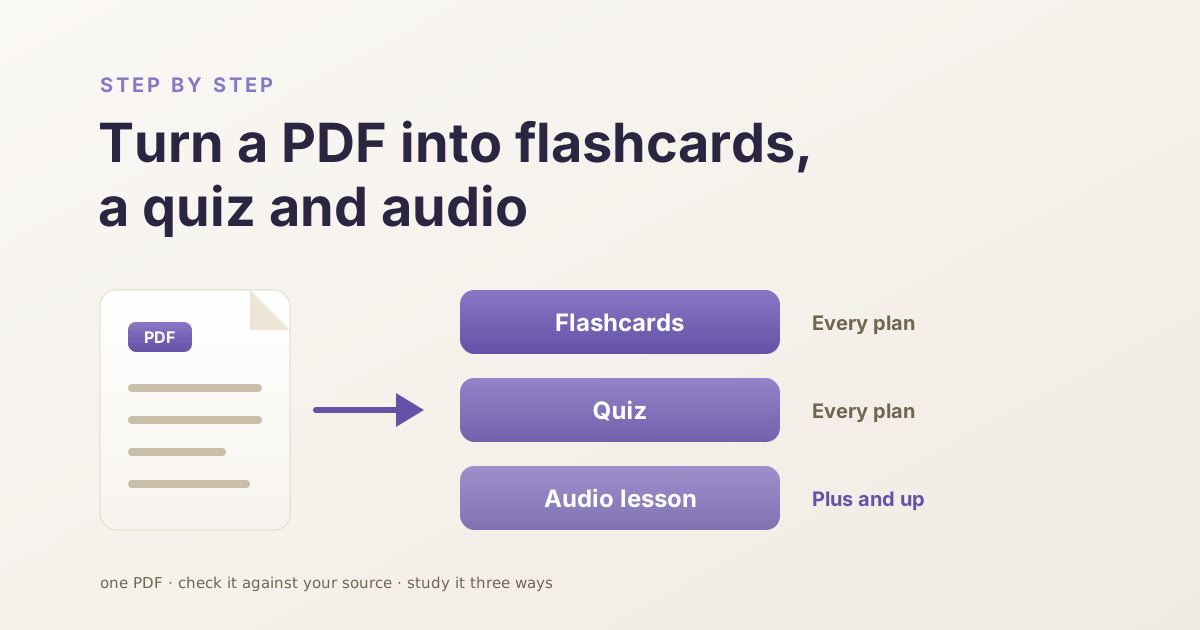
To turn a PDF into flashcards, a quiz and audio, create a free HippoKit account, switch the generator to Document, upload the PDF, pick your formats and select Generate kit. Flashcards and the quiz are on every plan; audio needs Plus or higher. Formats arrive in 1–5 minutes. Check them against your source before you rely on them.
What do I get, and which plan do I need?
The honest version first, because the title mentions audio: audio is not on the Free plan. Here is what each format needs and costs.
| Format | Plan | Credits | Take it with you |
|---|---|---|---|
| Flashcards | Every plan | 1 | Save as PDF |
| Quiz | Every plan | 2 | Save as PDF |
| Ebook | Every plan (one a month on Free) | 12 | |
| Audio lesson | Plus and up | 6 | MP3 |
| Slide deck | Plus and up | 20 | PowerPoint (.pptx) or PDF |
The Free plan has 60 credits a month. Flashcards plus a quiz from one PDF is 3 credits, so with the ebook unticked you can work through a syllabus chapter by chapter without paying. If you want to listen to the material as well, that is the point where you need Plus. Current prices are on the pricing page.
Before you upload: three things to know
- Kits are public by default. A finished kit is public by link and can be found by search engines, and that includes a kit made from your PDF. You can switch it to private from the kit's share menu, but only once the kit has finished generating. If the document is confidential, or is not yours to share, think about that before you upload it.
- You need an account. Uploading a file needs a free account. Without one you can try HippoKit from a typed topic only.
- The file has to be a PDF you can open without a password. Files up to 50 MB are accepted. Password-protected PDFs are rejected, so remove the password first. Photos and screenshots of pages are not accepted as a source. Word and PowerPoint files are, but on paid plans.
How do I turn a PDF into flashcards, a quiz and audio?
- Sign in. Create a free account or sign in, then open the generator.
- Switch the source to Document. At the top of the form there are two tabs, Topic and Document. Choose Document and the topic box is replaced by an upload area.
- Upload the PDF. Select "Choose a file" or drag the file onto the upload area. Give the file a sensible name first, because the file's name becomes the kit's name, including on its public page.
- Wait for the check. After the upload, HippoKit inspects the PDF and shows its size and page count. Two things can stop you here: a password-protected file, or a document that is too long for your plan. In the second case you are told immediately and nothing is charged. Upload a shorter PDF, such as a single chapter, or move to Plus or Premium, which accept longer documents.
- Say who it is for. The "For:" field takes a plain description of the learner, such as "for exam prep" or "for my team". HippoKit uses it to pick a difficulty level.
- Pick your formats. Open "Customize formats" and untick anything you do not want. Ebook is ticked by default and costs 12 credits, and the Free plan allows one ebook a month, so untick it for later chapters. Flashcards and the quiz have a slider for how many cards or questions to make, up to a maximum that depends on your plan. On the Free plan, Audio and Slides show a lock and an "Unlock with Plus" label.
- Check the cost and generate. Add up the credits for the formats you ticked using the table above (all five together cost 34, less than the sum), then select "Generate kit". If your credits cover none of the formats you ticked, the kit is not started and nothing is charged. If they cover only some, HippoKit may make the formats you can afford and tell you which were left out.
- Open the kit. You are taken to the kit page. Formats usually arrive in 1–5 minutes: flashcards and the quiz first, audio and slides last.
One thing that is different for documents: the free "Preview samples" step, which lets you see a few sample items before generating, is offered for typed topics. It is not available for an uploaded document today.
How do I check the cards and questions against my PDF?
Do this before you study from the kit, and certainly before you hand it to anyone else.
The kit is written by AI from the content of your document, and AI can get things wrong even when the source is in front of it. A card can state a detail slightly off. A quiz can mark the wrong option as correct. Keep the PDF open next to the kit and read through each card and each answer once. Pay most attention to numbers, dates, definitions and anything your exam words in a particular way.
When you find a problem, fix that one item. You can edit the front or back of a flashcard, or a quiz question and its answers, directly in the viewer on every plan. Nothing else is regenerated. On Plus and up you can also ask AI to rewrite a single item, and you should read the rewrite just as carefully.
How does the flashcard review work?
Spaced repetition means seeing a card again after a gap, with the gap getting longer as you keep getting it right.
Flip a card, then rate how it went: Again, Hard, Good or Easy. The number keys 1 to 4 do the same thing. On every plan, HippoKit records the rating and works out when that card is next due. Be clear about what that does today: the deck in the web app still shows every card each time, and does not yet filter to the cards that are due. If you connect HippoKit to an AI assistant, the assistant can ask for just the due cards.
If you prefer paper, the printer icon opens a print layout of the deck that you can save as a PDF. It works only while the kit is public, so print before you switch a kit to private. HippoKit does not export decks to other flashcard apps today. There is more on the deck itself on the PDF to flashcards page.
How does the quiz work?
Most questions are multiple choice. A quiz can also include select-all-that-apply questions and short typed answers. After each answer you see the correct answer and an explanation; for a typed answer you mark yourself right or wrong. Each question has a 30-second timer, and a question that runs out is counted as skipped. At the end you get your score, and you can choose "Review Answers" to go back through every question or "Retake Quiz" to start again.
The explanations are useful twice: once for learning, and once for checking. If an explanation does not match what your PDF says, the question is probably wrong, and you can edit it. The PDF to quiz page covers sharing and exporting a quiz.
What does the audio lesson include?
On Plus and up, the audio lesson is an AI-narrated overview of the material. The player lets you change the speed from 0.75x to 2x and download the lesson as an MP3, so you can listen away from the screen. Where a transcript is available, you can read it under the player and download it too.
Audio is generated from the same document as the cards and the quiz. If you correct a card after the kit is made, the audio does not change with it, so listen with the same care you read the cards.
If you are a trainer with a handout
The steps are the same. Put the audience in the "For:" field as your learners rather than yourself, and review every question before the group sees it. For Word and PowerPoint sources, and for what each upload type is suited to, see Turn any document into a study kit.
Try it with one chapter
Start small: one chapter or one set of lecture notes, flashcards and a quiz, 3 credits. See whether the cards match how you would have written them, fix the ones that do not, and decide from there. Create a free account to upload your first PDF. No card is needed.
— The HippoKit Team