
How to Export AI-Generated Study Materials to PDF, PowerPoint and MP3
Short answer
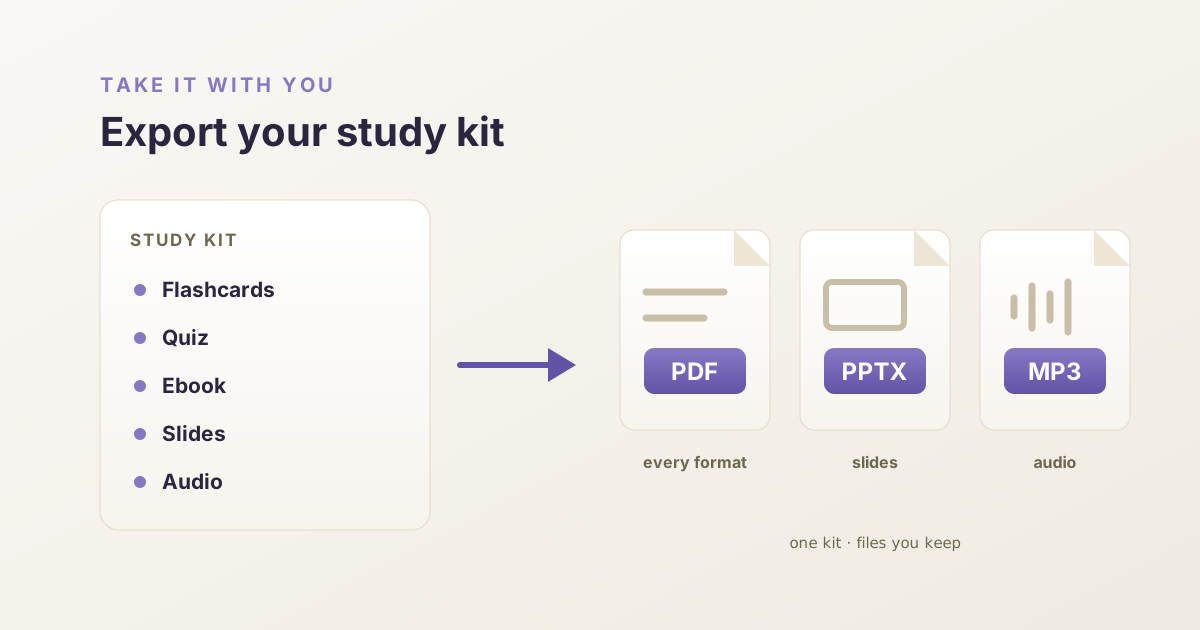
HippoKit exports each format of a study kit as its own file. The ebook and slide deck download as PDFs, the flashcards and quiz save as PDFs from a print view, the slides also download as an editable PowerPoint (.pptx) file, and the audio lesson downloads as an MP3 with a transcript. Slides and audio are on Plus and up.
Which file types can I export from an AI-generated study kit?
If you teach, a link is rarely enough. You need slides you can drop into your own deck, a handout you can print, and an audio file a learner can keep on their phone. If you study alone, you want files that stay on your own disk.
Here is what each format gives you.
| Format | Files you can take | Plan |
|---|---|---|
| Flashcards | PDF, saved from a print view | Every plan |
| Quiz | PDF, saved from a print view | Every plan |
| Ebook | PDF download | Every plan (one ebook a month on Free) |
| Slides | PDF download, print-view PDF, PowerPoint (.pptx) | Plus and up |
| Audio | MP3, plus a plain-text transcript | Plus and up |
Exporting does not spend credits. Credits are spent when a format is generated: flashcards cost 1, a quiz 2, an ebook 12, audio 6 and slides 20. The Free plan has 60 credits a month, and Plus is $12.99 a month. Formats arrive in 1–5 minutes. Current plans are on the pricing page.
One thing to know before you plan a handout around these files.
Every PDF carries a small footer. The ebook, slides and flashcard PDFs have a line at the bottom of every page that reads "Made with hippokit.ai", with the page number. The quiz PDF carries the same line at the end of the question section and at the end of the answer key. That is true on every plan, paid ones included.
What is in the PowerPoint file, and can I edit it?
Open your deck in the slide viewer and press PPTX. The button reads "Preparing…" while the file is built, then your browser saves a file named after your topic.
What the file contains:
- Widescreen slides at 16:9, with your theme's background, colours and fonts applied.
- Real text boxes. Titles, body text, bullets and key-number cards are text you can click into and retype.
- Pictures for images, charts and diagrams. Slide images, charts, flowcharts, diagrams and formulas are placed as pictures, so you can move, resize or replace them but not edit their contents.
- The HIPPOKIT name on the title slide. It is written in ordinary text boxes, the same as the rest of the slide's text.
What it does not contain: speaker notes. The deck is also built on blank slides with positioned boxes instead of PowerPoint's placeholder layouts, so you restyle it by editing the boxes directly.
If a picture cannot be fetched while the file is built, the slide usually falls back to text with a small "[visual unavailable]" note, and a formula can appear as its raw source text. Page through the deck once before you present it.
HippoKit builds a PowerPoint file and nothing else for slides. The .pptx format is widely supported, so other presentation software can usually open it, but there is no direct export to another slide tool. There is more on the deck itself on the PDF to slides page.
What do the PDFs look like when I print them?
Ebook. With the ebook tab open on your kit page, press Download. You get a US Letter PDF with the title, then each chapter under its heading, including the images, charts, diagrams and formulas the ebook has. The table of contents lives in the on-screen reader; the PDF does not add a contents page. If you edited the ebook, the download is re-rendered with your edits first.
Slides. The slide viewer has two PDF routes. PDF downloads a ready-made file, re-rendered first if you edited the deck. Save as PDF opens a print view in a new tab, one slide per A4 landscape page, and brings up your browser's print dialog.
Flashcards. The printer icon in the flashcard viewer opens a print view and your browser's print dialog. Choose "Save as PDF" or send it to a printer. Each card gets its own A4 page: the question at the top, then the answer, and the hint if the card has one.
Quiz. The PDF link in the quiz header works the same way. The questions come first with lettered choices and no answers marked. The answer key starts on a new page, with the correct letter and the explanation for each question. Read the key against the on-screen quiz before you hand anything out, then give learners the first part and keep the key.
One caveat. The flashcard, quiz and slide print views load the kit through its public page, and so does the re-render of the slides PDF after an edit. They work while the kit is public, which is the default. If you set a kit to private, save those PDFs first; an edited private deck can download as the older PDF. The ebook, PowerPoint and MP3 downloads use your sign-in instead.
What can I do with the MP3 and the transcript?
The audio player has two buttons next to the speed control. MP3 saves the narrated lesson as an audio file. Transcript, shown when the lesson has one, saves the script as a plain text file.
The MP3 is an ordinary audio file, so it can go wherever audio files go: a phone, a shared folder, an email to a learner. The transcript is useful for learners who would sooner read than listen, and as a starting point for your own talking notes, since the PowerPoint file has none.
What does not export?
It is better to know this before you build a course around the files. None of these is available:
- No Anki deck or other flashcard-app file. Flashcards leave as a PDF.
- No SCORM or xAPI package, and no connection to an LMS.
- No Word (.docx) or Markdown file for the ebook or the quiz.
- No direct export to Google Slides or any other slide tool.
- No speaker notes in the PowerPoint file.
- No single download for a whole kit. Each format is exported from its own viewer.
Should I share a link or send a file?
You can do either, and they behave differently.
A finished kit is public by link and can be found by search engines, because public kits are listed in the sitemap, unless you set it to private from its share menu. So a link is already a way to hand a kit over, and you can share it as a course link that shows, format by format, who started and who finished.
The page a learner opens from your link is for viewing. They can flip cards, take the quiz, read the ebook, page through slides and play the audio there, but the ebook, slides and audio download buttons appear only on your own kit page. If a learner needs the file itself, you export it and send it. One exception to know about: the quiz's print link also shows on the shared page, and it prints the answer key. A shared link is not the place for a quiz you intend to grade.
Send a file when the material has to work offline, when it needs to sit inside your own deck or handout, or when you want to control exactly which version people have.
Check it before you hand it over
AI can get things wrong. A flashcard can state something too strongly, a quiz explanation can be off, and a slide can simplify a point until it is no longer true. Read every format before it reaches a learner.
You can fix text in the viewer first. Ebook paragraphs, slides, quiz questions and flashcards can be edited inline on every plan. Then export, and read the exported file once more, because that is the version people will keep. If you exported a PowerPoint file before editing the deck, the next export can hand you the earlier file. Open it, and if your edits are missing, press PPTX again.
Try it
Look at a few finished kits in the gallery to see what the formats look like, or read how trainers use the files on the training materials page. When you are ready, start free with flashcards, a quiz and an ebook, and save your first PDFs.
— The HippoKit Team